Write Group Studies I - Setup
How to Turn a Study into a Group Study
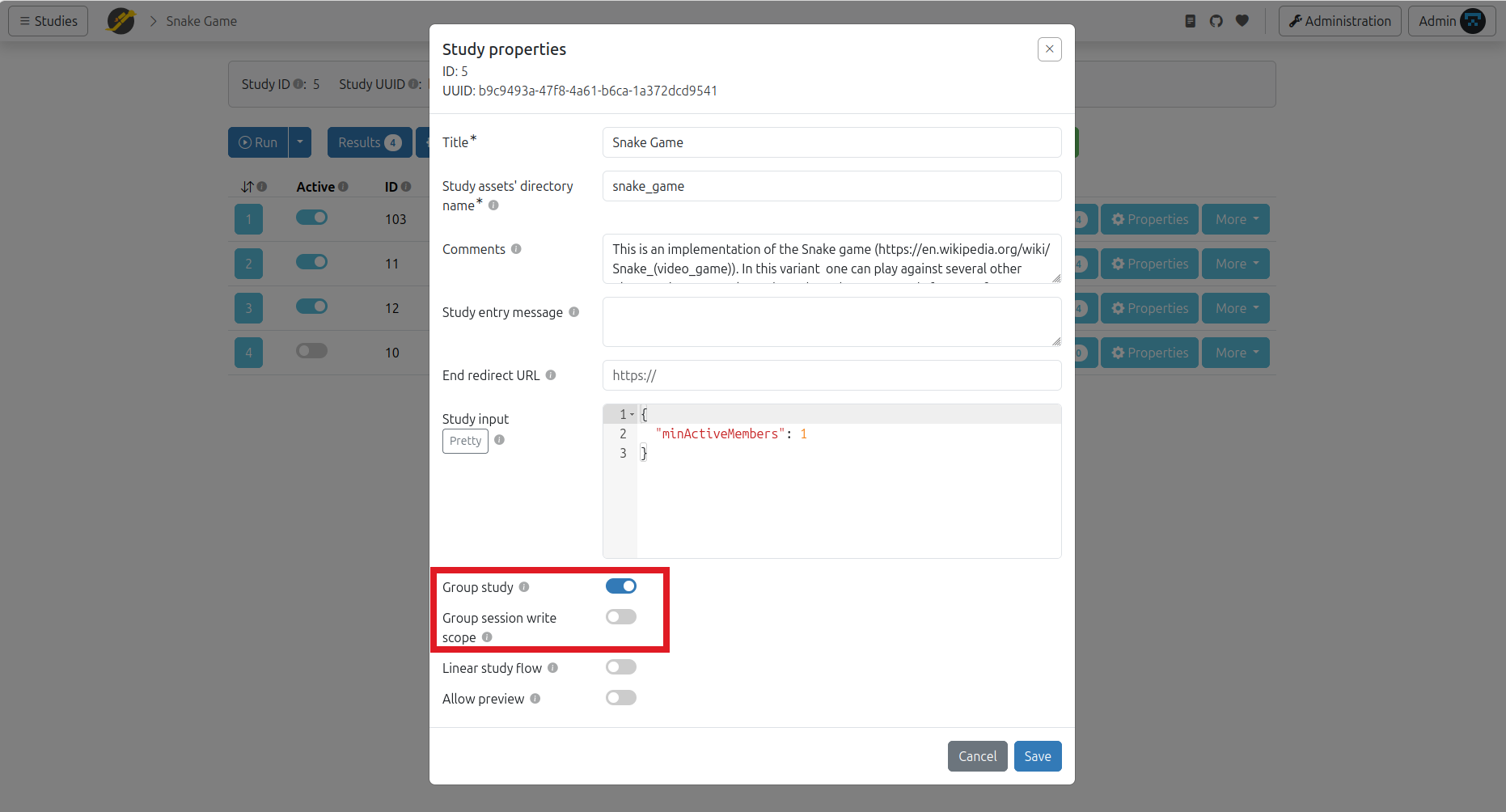
Go to your study, open Properties, and select the Group study checkbox.
Group Session Write Scope
If the group study is activated, you can then configure the group session write scope:
- If the checkbox is not selected, every group member can write anywhere in the group session data and could potentially overwrite data written by other members.
- If the checkbox is selected, each member can write only within their own scope, beginning with
/<group-member-id>(equals study result ID), or within the shared scope at/shared.
When the Group property is enabled, JATOS will assign workers into groups. You can adjust several group properties to control how workers are assigned—either keeping full control yourself or letting JATOS handle it automatically.
Group Settings in Each Batch's Properties
Go to your study's "Study links" page. Group setup is done on a batch level. Click "Properties. There are three key properties for group studies:
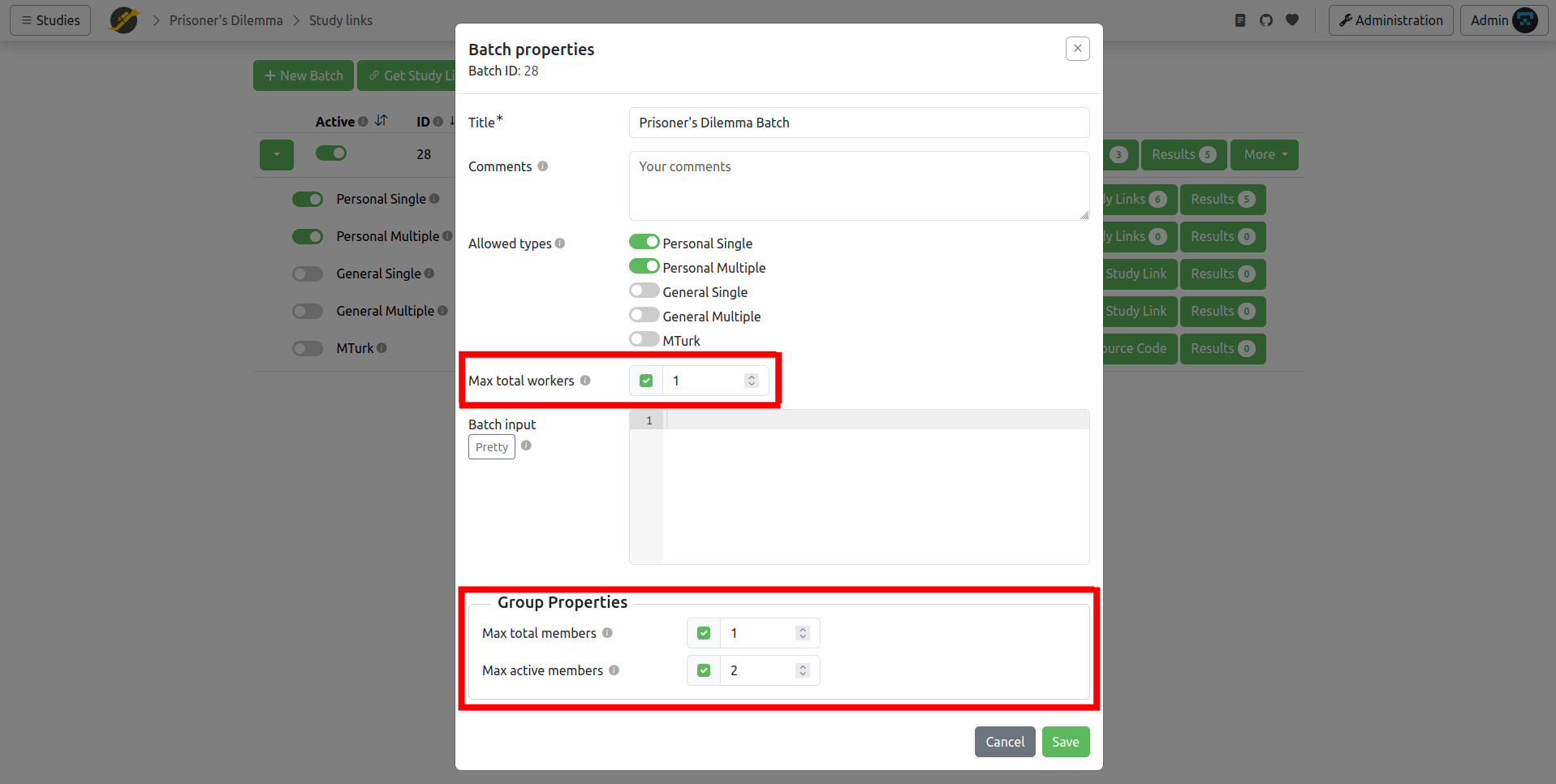
- Max total workers: Limits the total number of workers allowed to participate in this batch. (This is not exclusive to group studies.)
- Max total members: Limits the number of members in a single group. Multiple groups can exist in a batch, and this value applies to each group individually.
- Max active members: Limits the number of active members in a group at any one time. An active member is currently in the group, as opposed to a past member who has already left. For example, in the Prisoner's Dilemma study, you would set this to 2.
By default, all these properties are unlimited.
Group Assignment
You can let JATOS assign workers to groups automatically, assign them yourself, or use a combination of both. The following scenarios illustrate how group assignment works:
Scenario 1: One Group, Manual Assignment
If you set Max total workers to 2 and leave the other two fields empty, only 2 workers can join, and both will be placed in the same group. If you add two Personal Single study links (other link types also work) and send them to your two participants, you can be sure they will interact with each other. To create more groups, simply add another batch with two more workers.
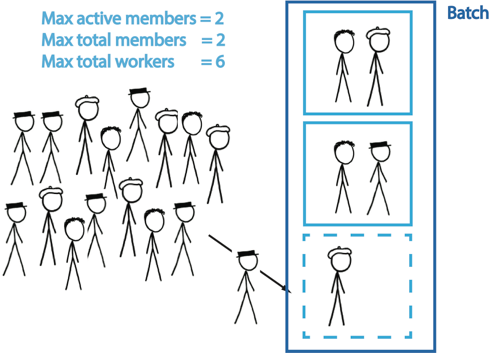
The first two scenarios are relevant for the Prisoner's Dilemma Example Study.
Scenario 2: Several Groups, Automatic Assignment
Suppose you want 3 groups with 2 workers each and want JATOS to pair workers automatically. Set Max total workers to 6, and both Max total members and Max active members to 2 (these limits apply per group). Then add 6 Personal Single study links (other link types also work) and distribute them to your 6 participants.
Scenario 3: One Open World
This is the opposite of Scenario 1. If you leave Max total workers, Max total members, and Max active members unlimited, JATOS will place all workers into a single, potentially unlimited group. To keep it fully open, add a General Single study link (other link types also work) and share it (e.g., via a mailing list or website).
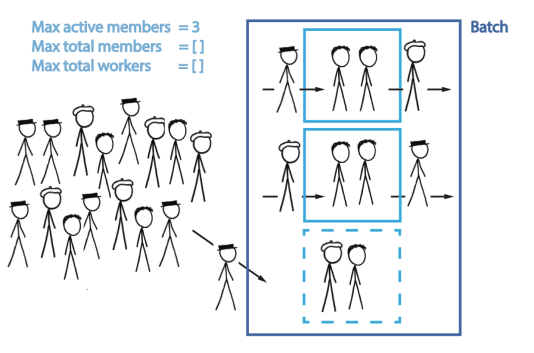
Scenarios 3 and 4 are relevant for the Snake Example Study.
Scenario 4: Multiple Open Worlds with Limited Active Members
Suppose you want groups with up to 3 members interacting at the same time, but you don’t want to limit the total number of members per group. New workers can join a group if someone leaves, allowing a flow of participants. The only constraint is the maximum number of active members per group at any time. JATOS will determine the number of groups based on available workers. To set this up, use one batch, set Max active members to 3, and leave Max total workers and Max total members unlimited.